

Explore Different Decisions Risk-Free
A topic that seems to cause a certain amount of confusion among Meisterplan users is the difference between portfolios and scenariosScenarioIn project portfolio management (PPM), scenarios are potential ways that your portfolio can look, based on a set of well-defined assumptions and portfolio decisions. Scenario planning is used to forecast…. The purpose of this article is to explain these two areas of functionality so that you understand what each of them does and what they are best used for.
In simple terms:
- A portfolio is a filtered subset of the data
- A scenario is a copy of the data.
Scenarios in Meisterplan
When a Meisterplan system is set up the data is initially loaded into the Plan of Record (PoR). This may be regarded as the master data for the system and care should be taken that access to update this data is strictly controlled via user access. On the “Rights” tab of the “Edit User Account” dialog box (accessed from the Menu under Manage>Users>Edit User) is a checkbox to manage this:

Leaving this unchecked for the majority of users will allow you to ensure that changes to the PoR can be controlled.
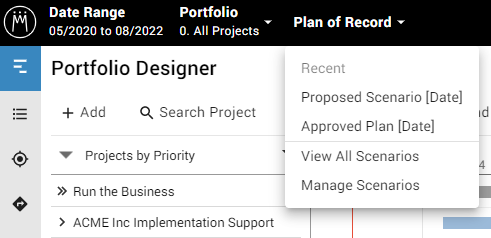
To create a new scenarioScenarioIn project portfolio management (PPM), scenarios are potential ways that your portfolio can look, based on a set of well-defined assumptions and portfolio decisions. Scenario planning is used to forecast… click on the Scenario dropdown (this displays the name of the current scenario, initially it will be “Plan of Record) near the top left hand side of the screen and select “Manage Scenarios”:
This will open the Scenario Manager screen:
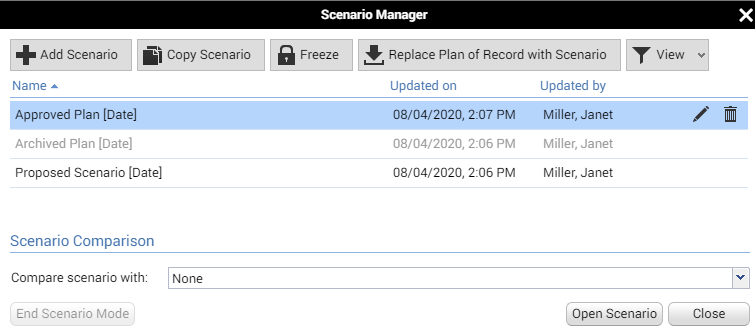
If you click “+ Add Scenario” a new scenario will be generated as a copy of the PoR. You need to give it a name and have the option of specifying which users are able to edit it:
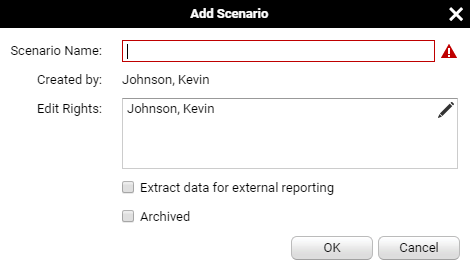
We recommend creating a new scenario each planning cycle (typically monthly but could be weekly or even daily as required) and granting access to the users who need to update it. All planning work is then carried out within the scenario and changes may be applied to the PoR either individually (By right-clicking on the projectProjectA project is a time-limited undertaking with defined objectives and resources that delivers unique results and often includes complex tasks. and selecting “Submit Project to Plan of Record”) or as a whole by selecting the scenario from the menu and clicking “Submit Scenario as Plan of Record”. For either of these cases the user must have Plan of Record Edit Rights as noted above.
This however is not the only use of Scenarios. They may also be used for:
Evaluating Options – use a scenario to model the effects of potential changes in the portfolio. e.g. adding new projects, changing resourceResourceResources are all the people, places and things that you need to complete projects. The most important resource? Employees, of course! availability levels or adjusting priorities. You can also use an existing scenario as your base rather than the PoR. To do this click on a scenario in the Scenario Manager and select Copy Scenario. This enables you to try multiple options before committing them to your current planning scenario or, by creating two or more scenarios, model a number of options to see which give the best result.
Making a backup – we always recommend creating a new scenario from the PoR before either committing a planning scenario as the new PoR or loading data. If anything goes wrong this means that you can restore your data to a known baseline by setting the backup as the PoR.
Working with Scenarios
When you open a scenarioScenarioIn project portfolio management (PPM), scenarios are potential ways that your portfolio can look, based on a set of well-defined assumptions and portfolio decisions. Scenario planning is used to forecast… you have the option to compare it with any of the other scenarios that exist, including the PoR by selecting it in the Scenario Comparison area at the bottom of the Scenario Manager screen. If you use this option any changes that are made to the projectsProjectA project is a time-limited undertaking with defined objectives and resources that delivers unique results and often includes complex tasks. may be seen against the compared scenario:
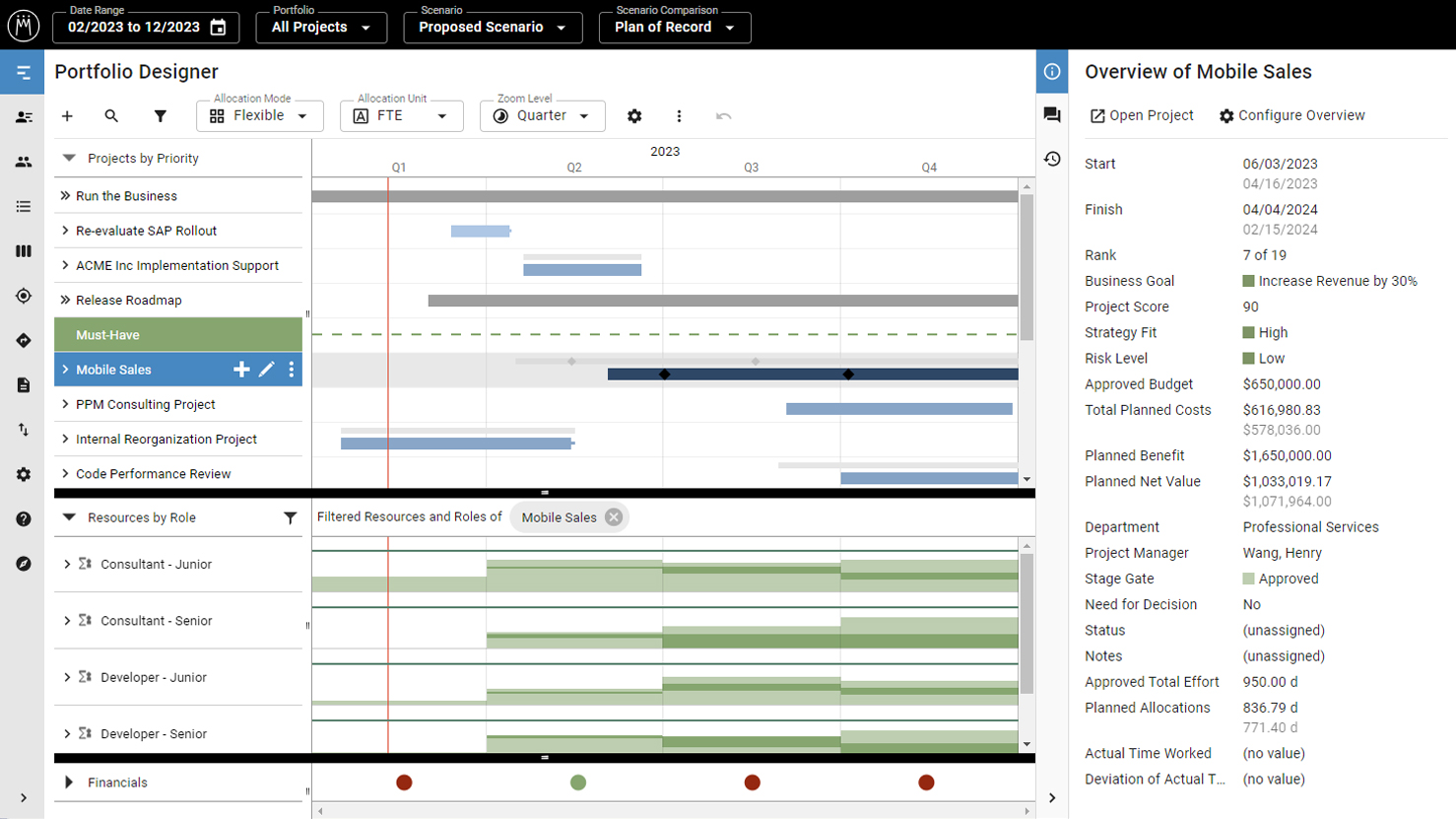
The thin grey bar above the project shows its position in the compared scenario. Whilst there is currently no Undo function, if you right click on a project you have the option to restore it to its original position by selecting “Apply Project from Compared Scenario”.
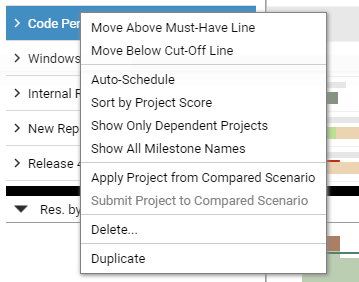
If you wish to compare multiple options, or to save the changes that you’ve made without committing them to the PoR, you can use the “Copy Scenario” button on the Scenario Manager page to use any scenario as the start point.
Scenario Limitations
Within a scenarioScenarioIn project portfolio management (PPM), scenarios are potential ways that your portfolio can look, based on a set of well-defined assumptions and portfolio decisions. Scenario planning is used to forecast… you can change the dates of projectsProjectA project is a time-limited undertaking with defined objectives and resources that delivers unique results and often includes complex tasks., their allocationsAllocationAllocating describes the strategic process of identifying the correct resources for projects or individual tasks and assigning them accordingly. and milestonesMilestoneIn project portfolio management, a milestone marks an important point in a project’s progress that requires monitoring or decision-making. Milestones indicate project phases, marking the completion of objectives or the… and also resourcing levels without affecting the PoR. However, the project metadata (e.g. the information stored in custom fields and accessed via the “Edit Project” screen) is not scenario specific and changes made here will affect the whole system.
One of the options for scenarios is to make them available for use with external reporting (e.g., using Tableau or Power BI). Currently the system only supports up to 10 scenarios using this feature so, if you are creating new scenarios regularly, it will be necessary to manage which are available for inclusion in reports.
Portfolios in Meisterplan
In Meisterplan, Portfolios are a way of grouping projectsProjectA project is a time-limited undertaking with defined objectives and resources that delivers unique results and often includes complex tasks. with a common aspect. This may be related to the department performing the work, the type of project, the customer the work is for or whatever you define. A common usage is to allow the managers of departments to see only their own projects and the resourcesResourceResources are all the people, places and things that you need to complete projects. The most important resource? Employees, of course! allocated to them and allow each manager to focus on the projects that they are responsible for.
To create a Portfolio click on the Portfolio dropdown at the top left of the screen and select “Manage Portfolios”:
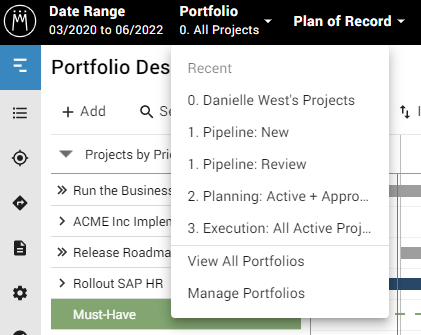
This will launch the “Portfolio Manager” screen:
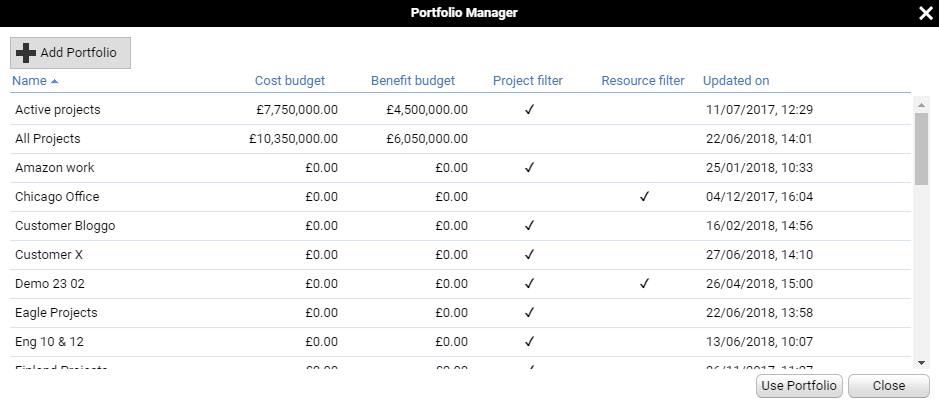
Click “Add Portfolio”:
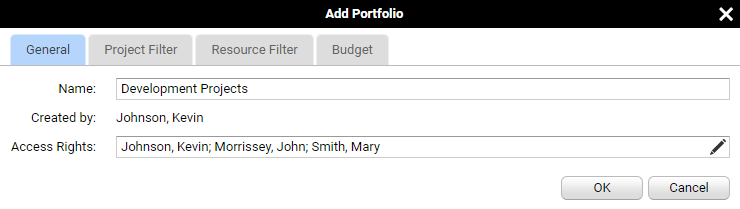
Give the Portfolio a name and assign rights to the users that need to see it. Use the Project Filter or Resource Filter tabs to define the Portfolio contents:
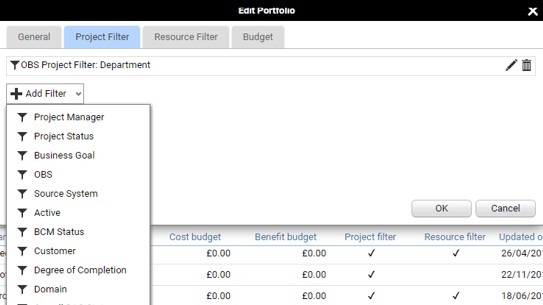
You can use any Lookup type fields or an OBS to select the projects that will be included. The options for Resources are more limited, the OBS is probably the most useful option:
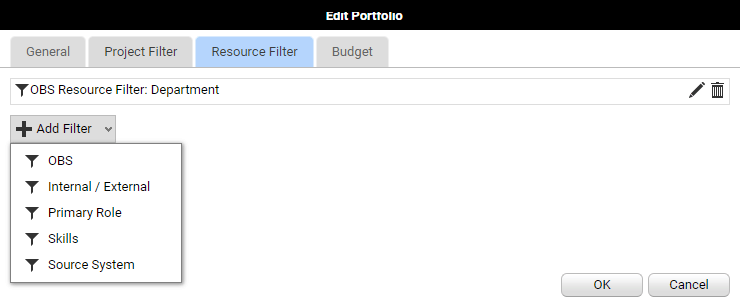
You can use either project or resource filters or a combination of the two.
Working with Portfolios
When you select a Portfolio the projectsProjectA project is a time-limited undertaking with defined objectives and resources that delivers unique results and often includes complex tasks. and resourcesResourceResources are all the people, places and things that you need to complete projects. The most important resource? Employees, of course! are filtered according to the settings you have selected. In this example there is a project filter set to show projects for the customer “Eagle” and a resource filter to show only resources from the Professional Services Department:

Only the projects for the selected customer are shown. All resources allocated to the projects are shown, regardless of whether they are in the selected department. Again, if you look at the allocationsAllocationAllocating describes the strategic process of identifying the correct resources for projects or individual tasks and assigning them accordingly. for a project you will see all of the allocated resources:
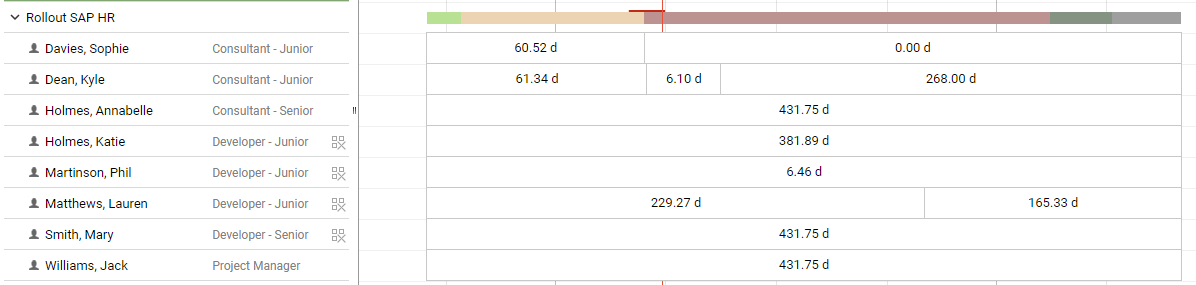
However, those which do not belong to the selected department are marked with an icon to their right to indicate that they are from outside the portfolio:

Those resources may not be amended within this portfolio. Also, only resources from within the selected department may be added to projects in this portfolio.
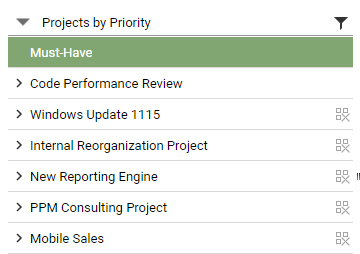
Similarly, if a resource is selected all of the projects to which they are allocated will be shown, with those outside the portfolio indicated by an icon to their right:
Using Scenarios and Portfolios in a Lean PPM Process
A lean process needs to be easily understood and add minimal overhead for the users. This is an example of how ScenariosScenarioIn project portfolio management (PPM), scenarios are potential ways that your portfolio can look, based on a set of well-defined assumptions and portfolio decisions. Scenario planning is used to forecast… and Portfolios can be incorporated into such a process for monthly update and approval of projectProjectA project is a time-limited undertaking with defined objectives and resources that delivers unique results and often includes complex tasks. and resourcing plans, an example of which is shown below:
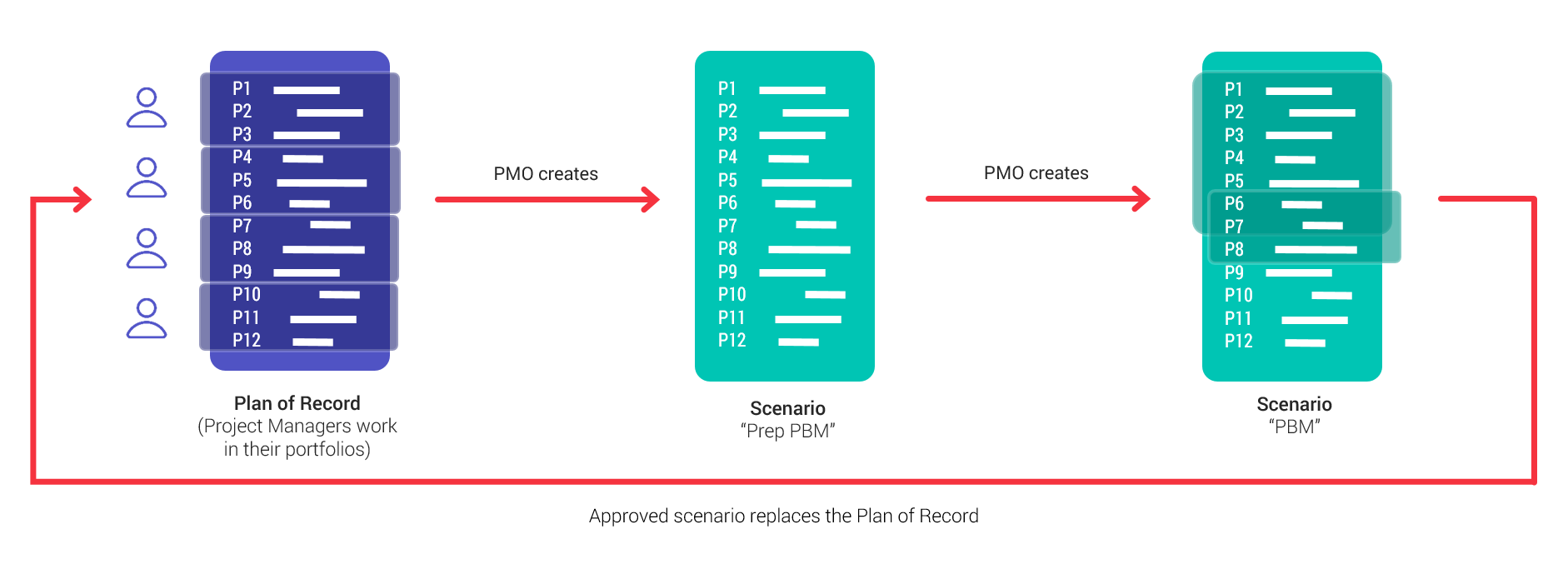
In this example the Project Managers work within Portfolios during the month to update their plans. This could be done in the Plan of Record, although some customers prefer to use a specific planning scenario for this purpose.
Towards the end of the month the PMOPMOSynonym for → Project Management OfficeA Project Management Office (PMO) is a permanent organizational unit responsible for the centralized and coordinated management of all projects. creates a new Scenario from the working plans and uses this to reconcile any scheduling conflicts and optimise the overall portfolio of work.
The PMO then creates a further scenario to present the proposed revisions to the board. Using a separate scenario enables any changes agreed at the meeting to be tracked. Once approved this Scenario is set as the new Plan of Record and the process is repeated the following month.
Summary
When considering whether a scenarioScenarioIn project portfolio management (PPM), scenarios are potential ways that your portfolio can look, based on a set of well-defined assumptions and portfolio decisions. Scenario planning is used to forecast… or portfolio is the right solution for your requirement, refer back to this post.
Use a scenario to:
- Show a specific subset of projectsProjectA project is a time-limited undertaking with defined objectives and resources that delivers unique results and often includes complex tasks..
- Show a specific group of users.
- Restrict access to specific projects or resourcesResourceResources are all the people, places and things that you need to complete projects. The most important resource? Employees, of course!.
Use a portfolio to:
- Only show specific projects.
- Represent a specific group of users.
- Control access rights to relevant projects and resources.
Read Next

Why Portfolio Unity Doesn’t Require Tool Uniformity
In the fifth post of this series on portfolio planning with Jira data, we look at how organizations can make better portfolio decisions without requiring every team to use the same tool.

Why Annual Planning Alone Isn’t Agile, and Ad-Hoc Decisions Aren’t Either
In the fourth post of this five-part series on portfolio planning with Jira data, we look at why organizations need a regular portfolio decision cadence that balances strategic agility with team focus.